 CamStation
Feature 1 of 10, Live switching, free; part of CamStation Pro: Your own stinger transitions, Your own wipe transitions, Morph between shots.
Cut between shots like a vision mixer.
Scenes as tabs, the next shot prepared while this one is on air, a click or a key to take it, and the transitions a vision mixer uses: cut, crossfade, dip, stingers, wipes and Morph.

Scenes as tabs, shots as cards
One click, one take.
Every part of the show is a scene, and every scene is a tab of cards: cameras, screens, clips, playlists and composite shots. Click a card and it goes on air, as an input button on a switcher does. Or press its number, Control Option Command 1–9, with your eyes on the guest.
Option-click a card to select it without taking it, then press Return on the word. Clicking another scene’s tab never changes the program, so you can prepare the next segment while this one is still on air.
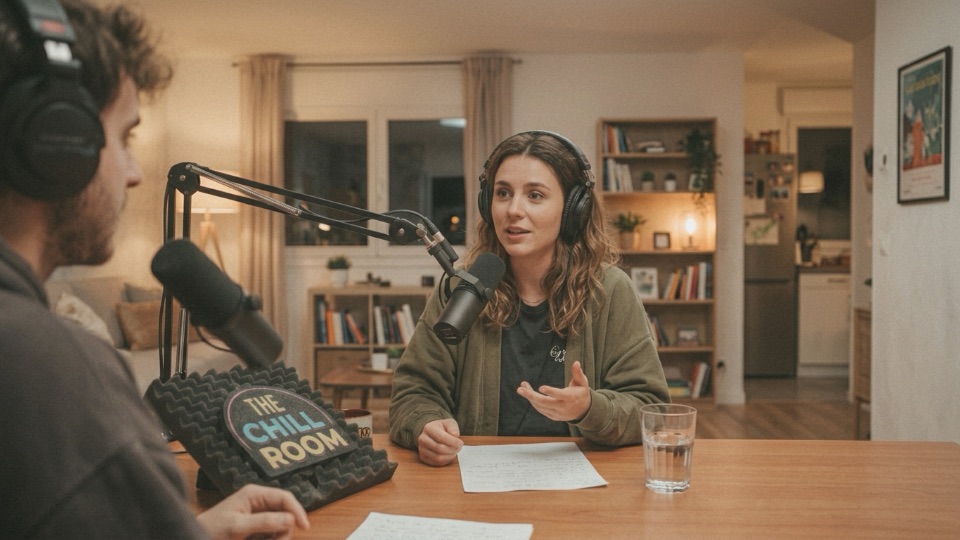
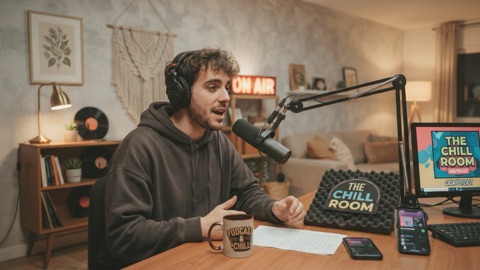
0.0 sHost camera
1.2 sGuest camera
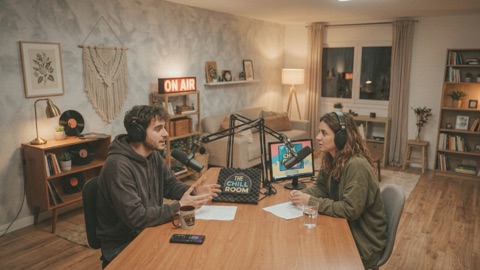
2.4 sWide shot
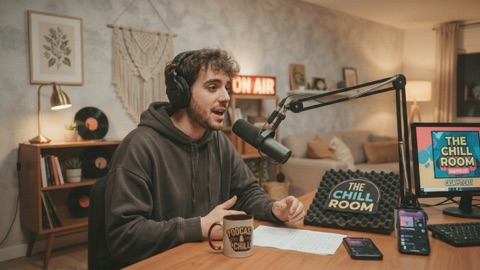
3.6 sHost camera
Watch the tally, not your pointer. The red ring lights every picture the audience can see, during a crossfade both. If it isn’t lit, it isn’t on air.
Cut on the sentence, not in the middle of a word. The end of a sentence, a breath, the instant someone starts to answer: a cut there feels natural; mid-word, it feels like a mistake.
Cuts, crossfades and dips
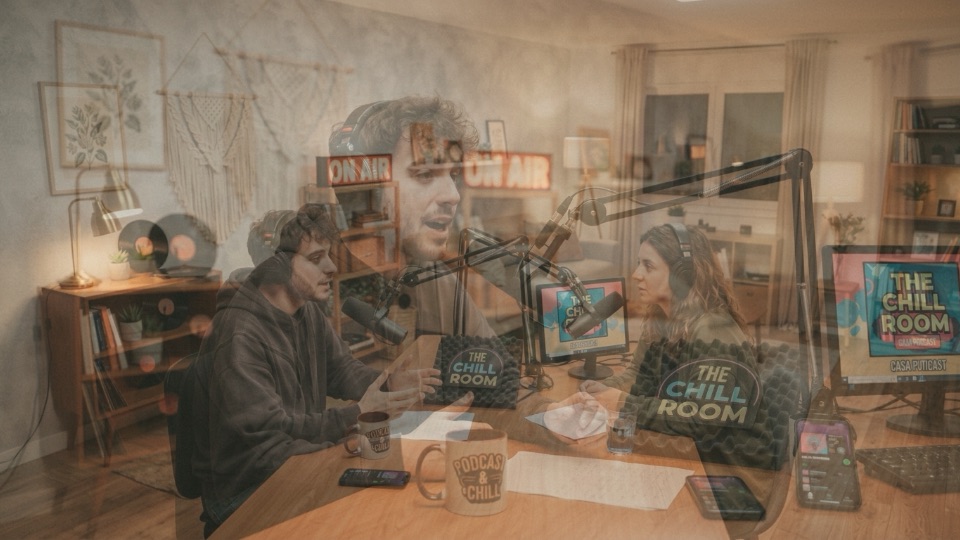
1.0 sHost camera
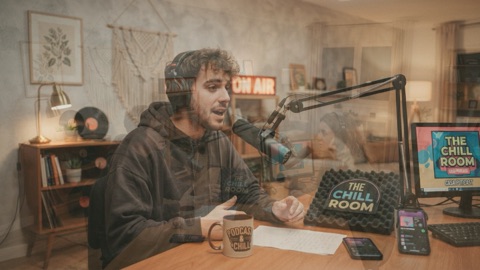
1.1 s
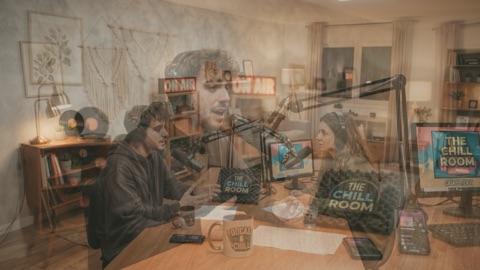
1.3 scut
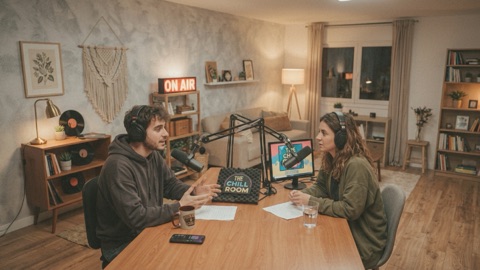
1.5 sWide shot
Pick the transition by what it means.
A cut changes on the next frame, the sound with a 10 ms de-click. A crossfade mixes picture and sound together over 100 ms to 3 seconds, on an equal-power curve that crosses at −3 dB at the cut point.
The rules that silence your mics and the music under a clip follow the same curve, so a crossfade into a video fades your voice out as the video’s sound comes in.

A dip for the segment break.
A dip to colour fades out, holds, and rises into the next shot. Into the music break, out of the sponsor read, the end of the show: a moment of black (or white, or the show’s colour) separates two parts clearly. The sound dips with the picture, or crosses under the colour for music that should carry through.
A transition is punctuation. A cut is a comma that keeps the conversation flowing; a crossfade says a moment has passed; a dip to black starts a new paragraph. Give each show two or three, each with one meaning.
Stingers and wipes
The animation hides the switch.
A stinger plays over the program, and at the frame where it covers the picture, the shot changes behind it. The four that come with CamStation, Iris, Shutter, Tile and Glass, are free, and made at both 50 and 60 fps. So are six wipes.
Bring your own: any animation with transparency, HEVC with alpha or ProRes 4444. CamStation finds the frame where it covers the picture and makes it the cut point. The stingers a show uses are loaded before you need them, so one fires the moment you press. Your own stingers and wipes are part of CamStation Pro.
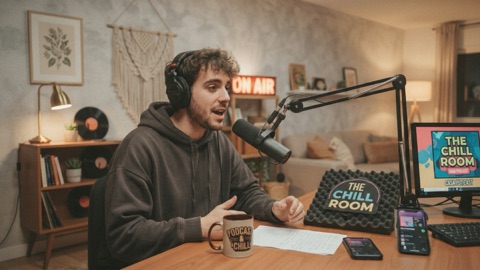
0.8 sHost camera
1.1 s

1.4 scut
2.0 sWide shot
1.0 sWipe Left
2.4 sWipe Diagonal
3.8 sBarn Door
5.2 sCircle
6.6 sBox
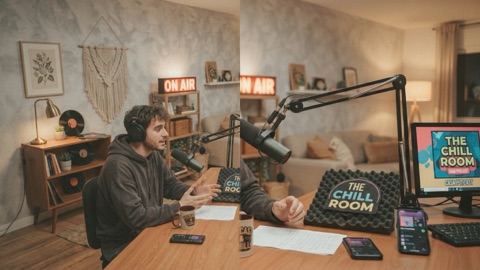
8.0 sClock
Use them for the moments that matter.
A stinger marks a moment, never every cut. The open, into and out of the sponsor, the start of the Q&A. On every cut it turns a conversation into a slideshow.
Keep it short: about a second. The show is the conversation, not the animation. A stinger longer than a second and a half feels like an advert for itself.
Morph: the picture travels
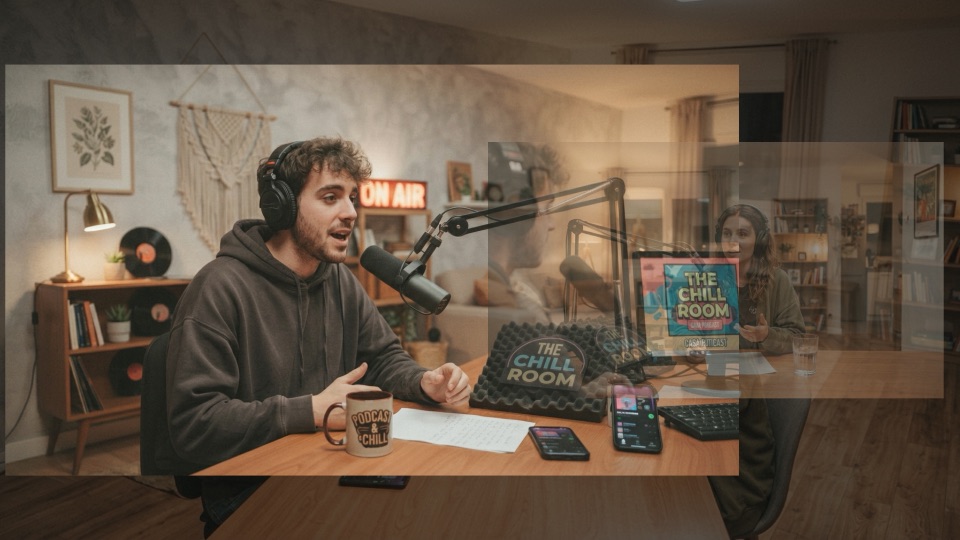
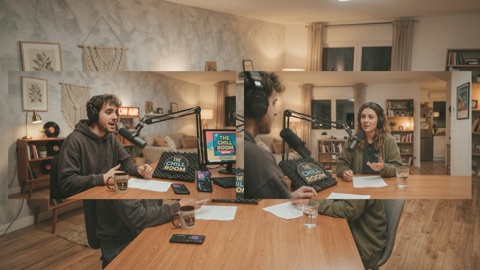
1.0 sTwo-shot
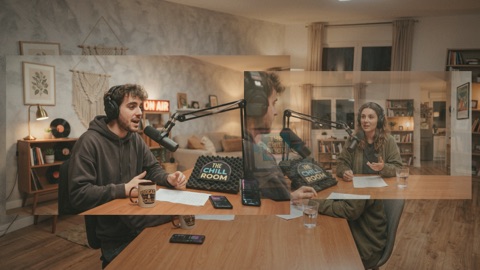
1.2 s
1.5 s
1.7 sHost camera
The eye never has to search.
Allow morph on a shot, and when you take it from a shot that shows the same camera, clip or screen, that picture travels from where it is to where it lands, while everything else fades around it. Television calls it a DVE move. A clip that travels keeps playing, never restarting.
When the two shots share nothing, the take uses its usual transition: a Morph never invents a crossfade of its own. Morph is part of CamStation Pro.
Use Morph the way a director uses a push-in: toward what matters, from the two-shot to the speaker when the story gets personal. Then cut back out.
A stand-in, and fade to black
One key for “back in a moment”.
STAND-IN crossfades to the card you keep ready, a “be right back” loop or a holding slate, from whichever scene you are in. Press it again and the program goes back to what was on air before. The music can fade in with it, so a break sounds planned.
FTB fades the whole program to black and silence, graphics included, while the music bed plays on: end the show on black under its music, then fade the music yourself.
1.0 sHost camera
1.1 s
1.3 scut

1.5 sBe right back
Set up a stand-in before every live show, even one you don’t expect to use. The doorbell, a dropped guest, a coffee: one key puts something deliberate on air instead of an empty chair.
Neither key stops a stream or a recording. The audience sees the stand-in or black for as long as you stream.
Run the show to time

Every clock in one place.
ON AIR counts since the program went out. A SEGMENT countdown turns red in its last 30 seconds and counts overtime after; or show the time of day. On a clip, REMAIN counts to its out point and AT END says what happens next: loop, hold, or back to the last live camera.
Ten seconds is your cue.
Watch REMAIN on every clip. At ten seconds left, decide what comes next and have your hand on it. And back-time the end: when the segment timer turns red, start your wrap-up sentence, not a new question.
At a glance
- Takes
- Click a card, Control Option Command 1–9, or select and Return; Control Option Command C always cuts. Scenes: Control Option Shift 1–9, never changing the program.
- Timing
- A cut or crossfade starts within one frame of the command; every audio channel moves with the picture on an equal-power curve, crossing at −3 dB exactly at the cut point. budget
- Transitions
- Cut, crossfade (100 ms to 3 s), dip to colour (hold 0 to 2 s), wipes, stingers, and Morph on the shots that allow it. Cut Control Option Command X · Crossfade Control Option Command F
- Bundled
- Cut, Crossfade, four stingers (Iris, Shutter, Tile, Glass) and six wipes, all free.
- Your own stingers
- From any clip with transparency: HEVC with alpha or ProRes 4444, cut point found for you.
- Stand-in and black
- Toggle Stand-in Control Option Command S · Fade to Black Control Option Command B
- Tier
- Free. Pro:Your own stingers and wipes, and Morph, are part of CamStation Pro.
Questions
Does clicking another scene’s tab change what is on air?
No. A tab only brings that scene’s cards in front, so you can look ahead and select the next shot while the current one stays on air. The program changes only when you take a card, and a red banner names what is on air from another scene.
Can I use my own stinger?
Yes, with CamStation Pro: import an animation with transparency (HEVC with alpha or ProRes 4444) and CamStation finds the frame where it covers the picture, which becomes its cut point. The four bundled stingers (Iris, Shutter, Tile and Glass) and the six bundled wipes are free.
What happens if I press again during a transition?
The running transition finishes at once and your new take starts from there, with its own transition. Nothing stacks and nothing is lost. If a take is still waiting (a camera waking up), the last press wins.
Can my show run at 25 or 50 frames per second?
Yes. A show runs at 25, 30, 50 or 60 fps; 25 or 50 is the right choice where mains power is 50 Hz, so lights don’t flicker on camera. The bundled stingers are made at both 50 and 60 fps, so each plays smoothly at your show’s rate.
Read on


Your show, on your Mac, the way broadcast does it.
Be the first to know when the beta opens.