 CamStation
Feature 2 of 10, Over the program, part of CamStation Pro.
Names, logos and pictures, over any shot.
The Over bar is CamStation’s downstream keyer: four channels above whatever is on air. Load the next graphic while your guest is still talking, fire it with one key, and it stays up across cuts and scenes until you take it off.

Four channels, one order
The newest graphic never covers the wrong one.
Channels stack by number, 4 on top. A name on channel 2 stays above a picture-in-picture on 1, whatever you pressed last. Each channel shows one shot at a time: fire another and it crossfades in, the rest of the stack untouched.
- 1 · Pictures
- A camera, a clip or a screen in a box: the picture-in-picture.
- 2 · Names
- Lower thirds and text.
- 3 · Logos
- An image or a looping clip in a corner.
- 4 · Full frame
- A card that covers everything, then reveals the show exactly as it was.
0.6 sWide shot
1.1 sChannel 1
2.1 sChannel 2
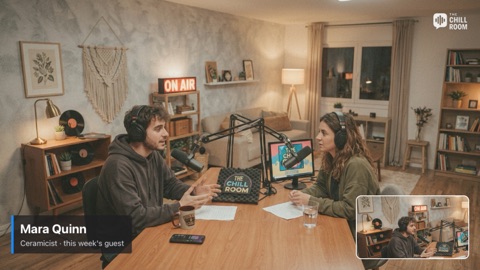
3.2 sChannel 3
4.9 sAll off
Prepare, then take
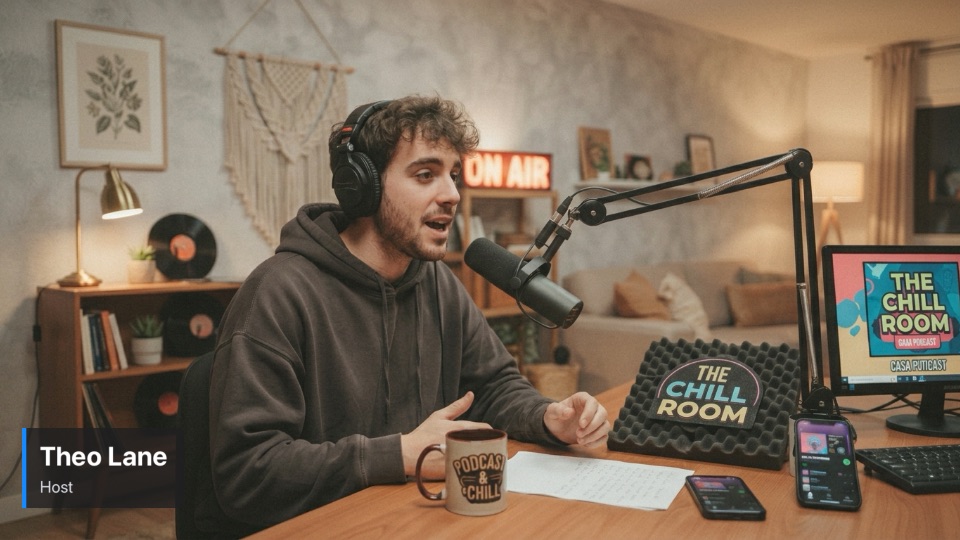
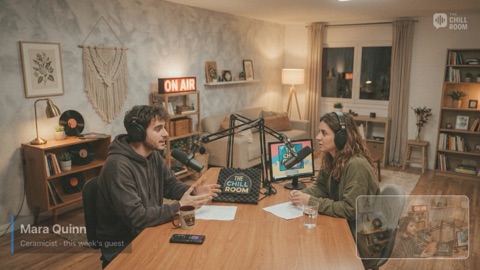
0.8 sHost camera
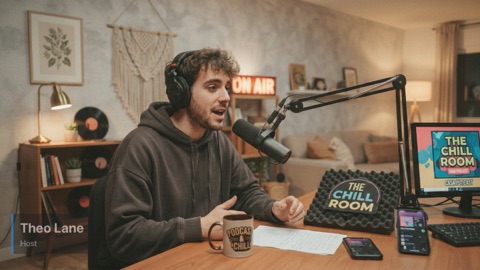
1.1 sEntering
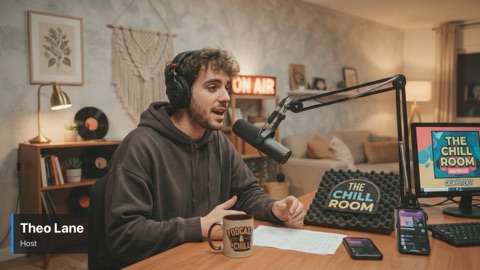
1.3 sUp
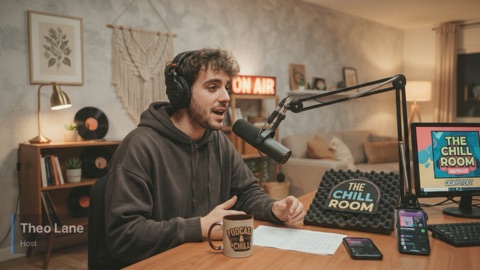
3.6 sLeaving
One key, with your eyes on the guest.
Option-click a shot to load it into its channel without showing it. When the moment comes, one press of the channel key, or Control Option Command W for channel 2, puts it on air. Every over-shot can have its own key too.
Load the next name while the guest is still talking. It is the vision mixer’s “prepare, then take”, and it is how you avoid firing the wrong name live.
TIE: graphics that move with the take
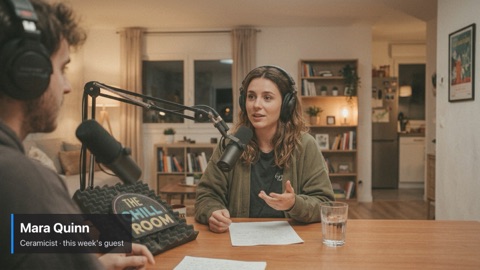
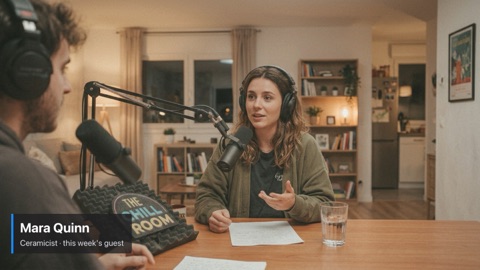
The name leaves with her close-up.
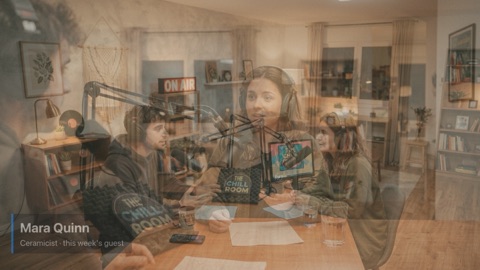
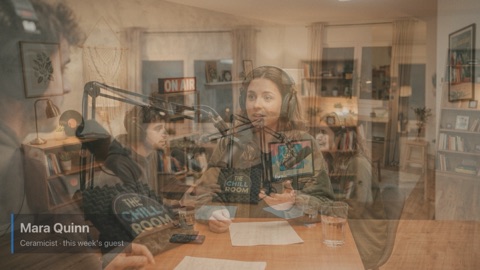
TIE links a channel to your next take, once: what is showing leaves with it, or what is loaded comes on with it. The channel changes at the take’s cut point, with the take’s own transition, so the picture and the graphic change as one.
TIE the name to the cut to the wide. A lower third under the guest makes no sense over the wide shot of the room. Arm TIE while she speaks, and the name leaves exactly with her close-up.
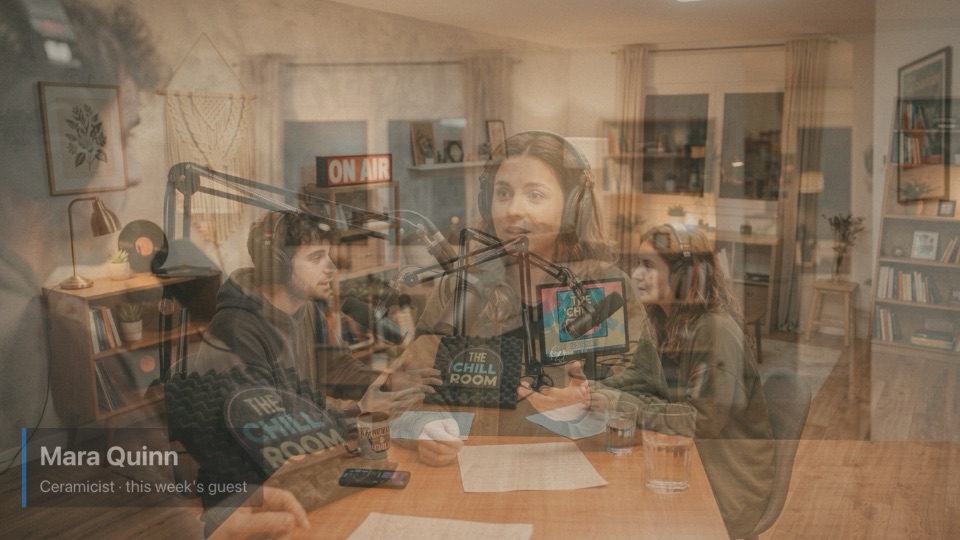
1.0 sGuest camera
1.3 sTIE
1.5 sWide shot
3.4 sTIE
3.6 sGuest camera
Under the stinger, as broadcast does it
0.8 sGuest camera
1.1 s

1.4 scut
2.0 sWide shot
A graphic that stays, stays on top. One that changes, goes with its picture.
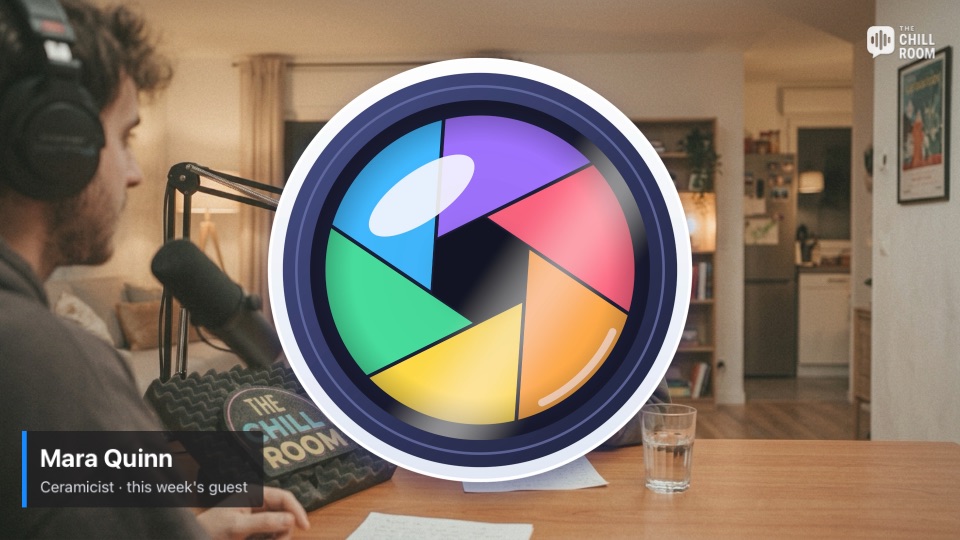
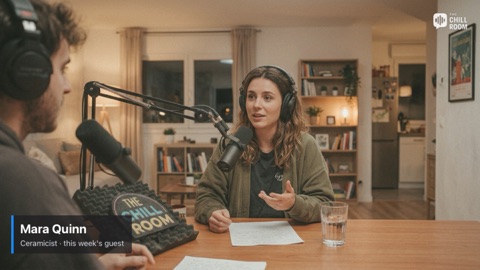
On a stinger or a dip, an over-shot that stays up rides above the transition, like a station logo over a switcher’s wipe. One that leaves or arrives with the take belongs to its side, under the stinger, so the stinger hides both. Its sound follows its picture, on the take’s own timing.
A stinger exists to hide the switch. A name vanishing on top of it would show exactly the jump the stinger is there to cover.
Built from your own shots

Any shot can go over the program.
An over-shot is a shot like any other, single or composite: a lower third, a camera in a corner box, a keyed presenter, a logo, a full-frame card. Start from a template (Lower third, PiP corner, Logo, Full frame), or drag a card you already built onto a lane of the Over bar.
Each over-shot keeps its own settings: its channel, whether it takes itself off with the next cut, an Auto-off from 1 to 60 seconds, its own fade, and its own key.
Show a name after the person has started speaking, and hold it 6 to 8 seconds. Auto-off at 7 seconds takes it off for you, even when your hands are on the next take.
Less is more over a face. A name, and maybe a logo. Two lower thirds, a PiP and a sponsor card at once bury the person the audience came to see.
Always know what is on air

Every picture the audience sees is lit.
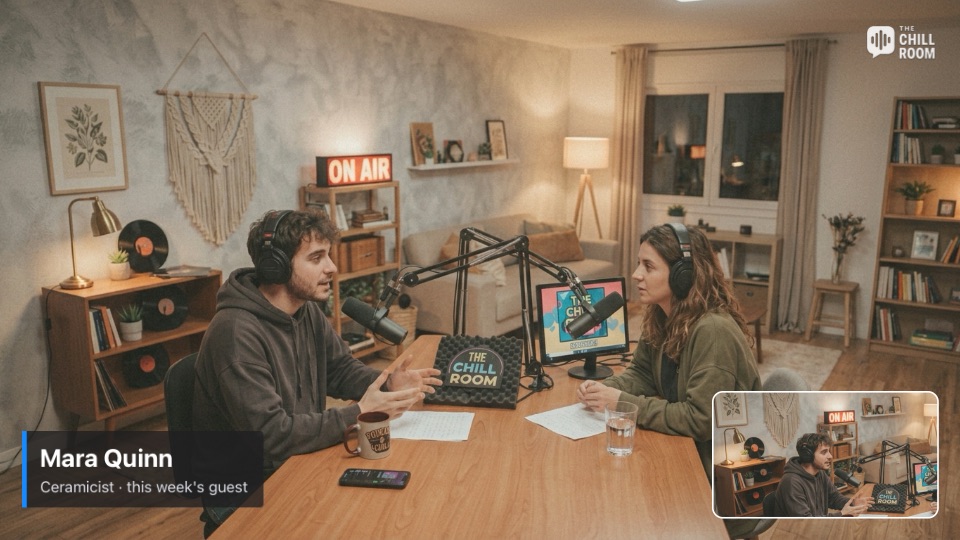
A showing over-shot’s key is purple. A camera inside it lights red with IN CH 1 to IN CH 4, because it is on air too, so you never reframe a camera the audience is watching in a corner. The top display lists what is up, after the picture and before the sounds.
Branding above it all.
Above the four channels sit the scene’s overlay and the show’s overlay, the branding that is simply there, so a lower third never covers the station ID. Fade to black takes everything, and brings it back as it was.
Keep the logo small, quiet and in a top corner, away from where lower thirds go, and a little transparent. Viewers should know where they are without the logo competing with a face.
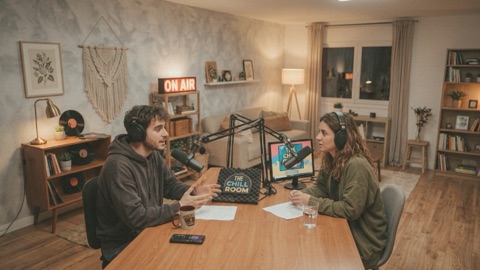
The program picture is a stack of layers, top to bottom: fade to black; the scene overlay and the show overlay; overlay channel 4 (full frame); channel 3 (logos); channel 2 (names and text, here Mara’s name, SHOWING); channel 1 (pictures, such as a picture-in-picture); and at the bottom the shot you cut to, the host camera. A higher channel always covers a lower one, whatever was shown last. With TIE armed on channel 2, the take to the wide shot changes the shot and takes the name off at the same moment.
At a glance
- Channels
- Four, stacked by number (4 on top), one shot at a time each. Above them: the scene’s and the show’s overlays, so a name never covers the station ID.
- Keys
- Channels 1 to 4: Control Option Command Q, Control Option Command W, Control Option Command E, Control Option Command T. All off: Control Option Command 0. The same keys with Shift arm TIE (Control Option Shift Command Q for channel 1). Any over-shot can have its own key.
- Templates
- Lower third, PiP corner, Logo and Full frame, or any composite shot you build in the Shot Editor.
- Timing
- Its own fade or the show’s transition; Auto-off after 1 to 60 seconds; takes off by hand or with the next cut.
- Tally
- A showing shot is purple; a camera inside it lights red with IN CH 1 to IN CH 4, because it is on air too.
- Sound
- An over-shot’s own sound is heard on the show mixer’s Over channel while it is up.
- Tier
- Pro:Over-shots, the show’s overlay and the scene’s overlay are part of CamStation Pro.
Questions
What is a downstream keyer, and why does CamStation have one?
On a vision mixer, the downstream keyers put graphics over whatever the switcher sends out, so a name or a logo stays up while you cut underneath it. The Over bar works the same way: an over-shot stays on air across cuts and scene changes until you take it off, or until the take you tied it to.
Do graphics stay up when I change scenes?
Yes. Over-shots belong to the show, not to a scene, so the Over bar is the same on every tab and nothing in it changes when you switch scenes. A picture-in-picture of the shelf cam shows the same camera whichever scene is on air.
Can I design my own lower thirds?
Yes. Start from the Shot Editor’s templates (Lower third, PiP corner, Logo, Full frame) and change them like any composite shot, or move a card you already built in a scene to Over. While an over-shot is showing, your edits in the Shot Editor go live.
Can an over-shot have its own sound?
Yes. A clip’s audio or a network camera’s sound in an over-shot is heard on the show mixer’s Over channel from the moment it comes in until it goes. An over-shot can also silence the show mics or the music while it is up, by its rule, as any shot can.
Is it in the free version?
Over-shots, the show’s overlay and the scene’s overlay are part of CamStation Pro. Cutting between shots, the bundled transitions and the tally are in every version.
Read on


Your show, on your Mac, the way broadcast does it.
Be the first to know when the beta opens.