 CamStation
Feature 5 of 10, Into every call.
Your whole show, in every call.
CamStation Camera and CamStation Microphone carry the program into Zoom, Meet, Teams, FaceTime, OBS and your browser, several apps at once. Choose them once in each app; that is the whole setup.

One camera, one mic, every app
Choose two devices. That is the whole setup per app.
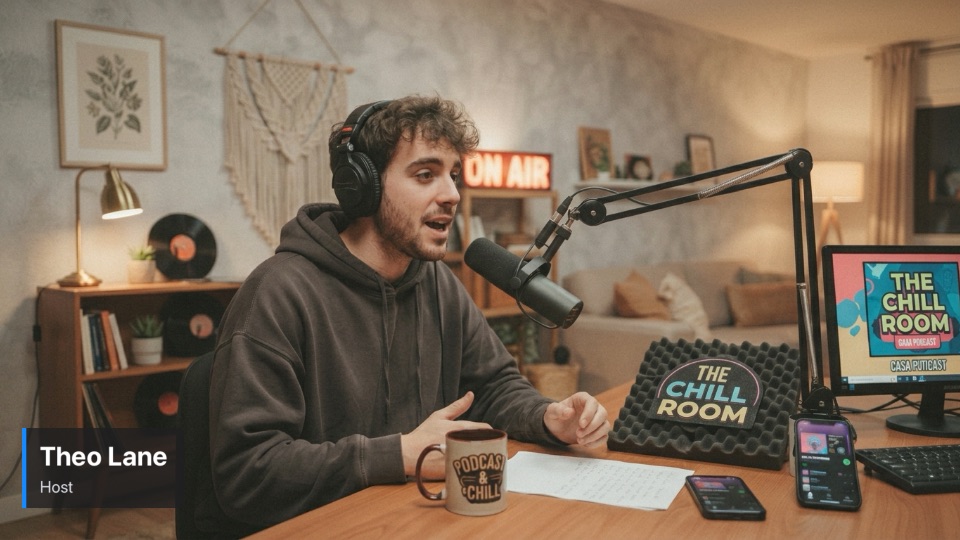
In the app’s video settings, choose CamStation Camera; in its audio settings, CamStation Microphone. Whatever your program shows and plays, the call gets, cut for cut: cameras, graphics, clips, your mic through its strip, the music under it.
Several apps can use them at once, all with the same show, and the top display’s TO: line names each one. If your call app isn’t named, it isn’t getting your show.
Choose the microphone too. With only the camera chosen, the call hears your Mac’s own mic: your room, but none of your show, and your voice out of step with your picture.
0.8 sHost camera
1.1 sEntering
1.3 sUp
3.6 sLeaving
Formats every app understands
Your show’s shape, at sizes webcams use.
Apps choose a size from the list the camera offers, as with any webcam. CamStation offers the common sizes of your show’s shape with square pixels, at your show’s family of frame rates: a show at 30 or 60 fps offers 30 and 60, a show at 25 or 50 offers 25 and 50, so frames always reach the app on an even beat. The program is made at the show’s canvas and scaled to the size the app picks.
- Landscape 16:9
- 1280×720, 1920×1080 · 30 and 60, or 25 and 50
- Portrait 9:16
- 720×1280, 1080×1920 · 30 and 60, or 25 and 50
- Classic 4:3
- 640×480, 960×720, 1280×960 · 30, or 25
- Portrait classic 3:4
- 720×960, 960×1280 · 30, or 25

Installed once, in a couple of minutes
Allow the camera, once.
The first time you open CamStation, a short setup installs both devices. Turn CamStation Camera on in System Settings when macOS asks, and setup moves on by itself.
Install the microphone.
CamStation Microphone takes your administrator password, and all sound on the Mac pauses for about a second while macOS loads it.
Then it looks after itself.
CamStation checks for both devices every time it opens, and shows what it is doing whenever one needs an update or a repair.
Call settings that keep your show clean
Turn off the call app’s noise suppression and automatic gain. Your program is already mixed and levelled; noise suppression chops up music and clip sound, and automatic gain pumps your levels. In Zoom, turn on Original sound for musicians.
Keep Landscape for calls. Zoom, Meet and Teams ask for 16:9, and many crop or letterbox anything else. To show a phone’s vertical video in a call, place it in a landscape shot.
macOS can add its own video effects to any camera, CamStation Camera included: Portrait blur, Studio Light and Reactions. Turn them off in Control Centre’s Video Effects, so a thumbs-up never fires fireworks over your show.
Calls compress the picture far harder than a stream. For a show seen mainly in calls, favour calm shots, fewer cuts and graphics with large, bold text.
At a glance
- Devices
- CamStation Camera and CamStation Microphone, in every app that uses a webcam and a microphone. Several apps at once, all with the same program.
- Picture
- Common webcam sizes of the show’s shape, square pixels, at 25 and 50 or 30 and 60 fps.
- Sound
- The program after the master strip, 48 kHz stereo.
- Lip-sync
- Within ±45 ms at the receiving app. budget
- Added latency
- At most 2 frames over the raw camera: 67 ms at 30 fps. budget
- Setup
- Once, the first time CamStation opens: one approval in System Settings, one administrator password.
- When it’s closed
- The camera shows “CamStation is off”; the microphone is silent.
- Tier
- In every version.
Questions
Does it work with Zoom, Meet, Teams and FaceTime?
Yes, and with every other app that can use a webcam and a microphone: OBS, Riverside, Discord, a browser. Choose “CamStation Camera” as the camera and “CamStation Microphone” as the microphone, as you would any webcam and mic.
Do I need to install anything else?
No plugins and nothing per app. The first time you open CamStation, its setup installs both devices: macOS asks you to allow CamStation Camera once in System Settings, and CamStation Microphone needs your administrator password. CamStation needs both to run, because the show’s sound is mixed inside the microphone.
Can two apps use it at the same time?
Yes. Several apps can use the devices at once and all get the same program: you can be in a Zoom call and send the same show to OBS. They share one picture format at a time, the last one an app asked for.
What do apps see when CamStation isn’t running?
CamStation Camera shows “CamStation is off” and CamStation Microphone is silent. While CamStation runs, the devices always carry the program, from launch; to show something else, use the stand-in or fade to black.
Read on


Your show, on your Mac, the way broadcast does it.
Be the first to know when the beta opens.