 CamStation
Feature 6 of 10, Streaming.
Go live everywhere at once.
YouTube, Twitch, Facebook Live, Kick and any RTMP or RTMPS server, together. Each platform gets its own encode and its own reconnects, so one slow link never drags the others.
Several platforms, one key

One slow link never drags the others.
Every platform you switch on gets its own encode: its own size, frame rate and bitrate, its own connection and its own reconnects. They all read the same program, so the picture and sound are identical everywhere, and nothing else is shared.
If Twitch slows down, only Twitch’s bitrate goes down; if Facebook refuses a key, YouTube and Twitch go on. Each platform has its own row in the streams panel, with its state, its time on air, its bitrate and its own key to start, stop or retry it alone.
A shared encode has to run at the bitrate the weakest link can carry, so every viewer gets the worst connection’s picture. Separate encodes cost little, because the media engine does the encoding.
Set up once, per show

Paste the key, keep the recommendation.
Each platform is a tab in the show’s settings: switch it on, paste the stream key from the platform’s dashboard, and you’re ready. The key is checked before it’s saved, so a pasted server address or a key with a space in it is refused with the reason, not discovered on air.
Recommended uses what the platform itself documents for your show’s shape and frame rate. Custom lets you choose the size, the frame rate, the bitrate, CBR or capped VBR, the keyframe interval and the codec, within what that platform accepts. Every show keeps its own settings, so a weekly show and a webinar can go to different channels.
Test with a private stream first. Schedule an unlisted stream on YouTube and go live to it for ten minutes, with the same settings, at the time of day you’ll stream. The platform’s stream health page tells you whether your bitrate, your keyframes and your connection held.
Go live, and know it
A lamp per platform, and a question before you end.
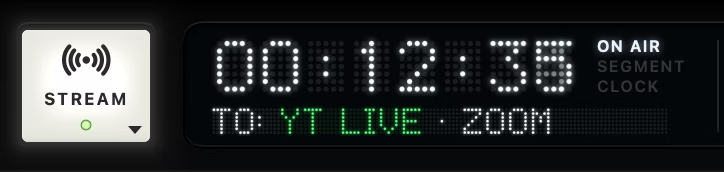
Press STREAM and every platform that is switched on and complete starts together. Under the key, one small lamp per platform says how it’s doing: green live, amber connecting or reconnecting, ringed red failed. Under the show clock, the TO: line names each platform with its state, then the apps using CamStation Camera and Microphone, so one glance tells you who is getting your show.
Ending the stream asks first, and the question has no default key: a stray Return on air never ends your show. A platform that can’t start (no key, no server address) is named on the display and left out; the rest go live.
Record every show you stream. With “Start recording when the stream starts”, the STREAM key records too, from the same moment, and a platform that drops never stops the recording. See Recording.
When the uplink can’t keep up
Each platform deals with its own connection, in three steps, and the sound never stops.
1 · Wait and catch up
When a connection stalls, the platform keeps up to 10 seconds of the stream waiting, and catches up without losing anything.
2 · Lower the bitrate
Past a second behind, it lowers its own bitrate a step at a time, and raises it again once the connection has been calm for a while.
3 · Drop video, keep the sound
If even its lowest bitrate doesn’t fit, it drops whole groups of video frames until it catches up, while its sound carries on.
A short freeze, never silence.
Only whole groups of pictures are dropped, so what reaches viewers always plays: they see a short freeze with continuous sound instead of a stream that ends. Video resumes from a fresh keyframe once the platform is back under a second behind. It is shown, DROPPING on an amber lamp, and counted (“12.4 s of video dropped”).
Only the platform that can’t keep up is affected: the other platforms, your recording and every call carry on untouched.
Use at most half your upload, for all your platforms together. Measure your upload, not your download, at the time of day you stream. On a 20 Mb/s upload, keep the sum of your streams under 10. And stream over a cable: Wi-Fi loses packets in bursts, which is what breaks a stream.
1080p30 suits a talk show. Faces don’t move fast, and the bitrate you save by not sending 60 fps buys a cleaner picture. Keep 60 fps for games, fast screens and sport.
At a glance
- Platforms
- YouTube, Twitch, Facebook Live, Kick, and any RTMP or RTMPS server (Custom RTMP). Several at once, each with its own encode, bitrate and reconnects.
- Protocol
- RTMPS (RTMP over TLS) to every platform; plain RTMP to a custom server, if you choose it. CamStation’s own client: no other app in between.
- Video
- H.264 everywhere; HEVC to YouTube and to custom servers that take it (Enhanced RTMP). Encoded by your Mac’s media engine.
- Size and rate
- 480p, 720p, 1080p or 1440p in the show’s shape, up to 60 fps. Up to what the platform takes: 1080p on Twitch, Facebook and Kick. The stream’s own rate, drawn for it natively, whatever the show’s.
- Recommended
- 1080p30 H.264: YouTube 14 Mb/s, Facebook 6, Twitch and Kick 4.5. At 1080p60: 17, 9 and 6. Each platform’s documented values; Custom gives a fader within its range.
- Rate control
- CBR or capped VBR; a keyframe every 2 seconds by default.
- Audio
- AAC stereo, 96 to 320 kb/s within each platform’s range. From the program’s 48 kHz; resampled at high quality where a platform asks for 44.1.
- On a slow link
- 10 seconds of backlog, bitrate stepped down and back up, then whole groups of video dropped for that platform alone, its sound kept whole.
- Stream keys
- Kept in this Mac’s Keychain; checked before they are saved.
- Tier
- Part of CamStation Free.
Questions
Can I stream to several platforms at once?
Yes. Switch on every platform the show goes to and the STREAM key starts them together. Each one gets its own encode, bitrate and connection, so you can send YouTube 1080p at 14 Mb/s and Twitch 6 Mb/s from the same show.
Which platforms can I stream to?
YouTube, Twitch, Facebook Live and Kick each have a tab with their recommended settings built in, and Custom RTMP takes any RTMP or RTMPS server: a media server, a CDN or a platform without its own tab.
What happens if my connection drops?
CamStation keeps trying for as long as you stay live, waiting a little longer each time, up to 30 seconds, and starts at full quality on each new connection. Only that platform is affected; the others stay live, and a recording you started keeps going.
Do I need OBS or another app to stream?
No. CamStation connects to the platforms itself, with its own RTMP and RTMPS client and your Mac’s media engine for the encoding.
Does streaming slow my Mac down?
The video is encoded by the media engine, not the processor. The Performance window shows what each platform’s encoder and sender cost while you’re live.
Read on


Your show, on your Mac, the way broadcast does it.
Be the first to know when the beta opens.