 CamStation
A video podcast that sounds like radio.
Two or three cameras, a mic each, names under the guests and a music bed that ducks: how The Chill Room runs its weekly show, streamed and recorded from one Mac.
The show
The Chill Room, every week.
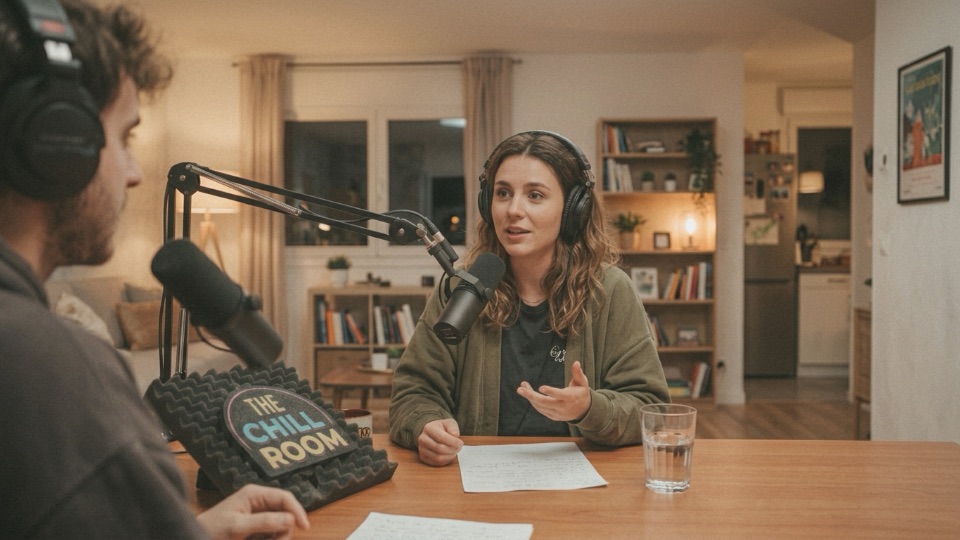
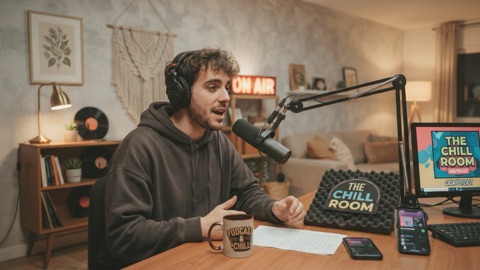
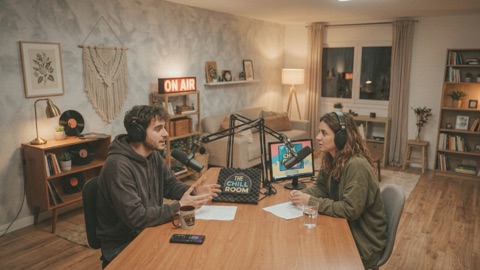
Theo Lane hosts; this week’s guest is Mara Quinn, a ceramicist; Sam Ito calls in for the questions. Three cameras cover the desk (one on each of them and a wide shot of the room), with a small camera on the bookshelf on the network. Two mics, one each. The show goes to YouTube and Twitch at once and is recorded for the edited episode.
Each part of the show is a scene, a tab across the top: Intro, Interview, Music break, Q&A. A scene holds the shots that part needs, so the operator only ever looks at the cards that matter now.

A typical rig
- Cameras
- One on each person and a wide shot: USB webcams, cameras on capture cards, your iPhone through Continuity Camera, or a network camera on a shelf. No limit on cameras in any tier.
- Mics
- One per person, close: USB mics or an audio interface. Up to four show mics, each with its own channel strip.
- A guest elsewhere
- A call’s window captured with its sound, or a phone or encoder sending over SRT.
- Outputs
- Several platforms at once, a recording with separate tracks, and CamStation Camera and Microphone for any call.
- Mac
- Apple Silicon (M1 or later), macOS 15.2 or later.
Cut the conversation
Cut on the conversation, crossfade between segments.
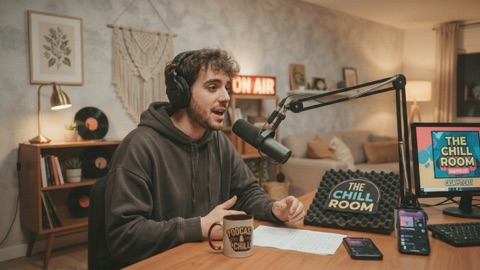
Inside a conversation, cut: to Mara as she starts an answer, to the wide shot for a laugh, back to Theo for the next question. Save a crossfade or a dip for the moments that say “we’re somewhere else now”: the opening titles, the music break. More in Live switching.
A transition is punctuation. A cut is a comma: the talk goes on and nobody notices it. A crossfade is a full stop, and a dip to black a new paragraph. Two or three, each with one meaning, and viewers learn them without knowing.
0.0 sHost camera
1.2 sGuest camera
2.4 sWide shot
3.6 sHost camera
Names at the right moment
0.8 sHost camera
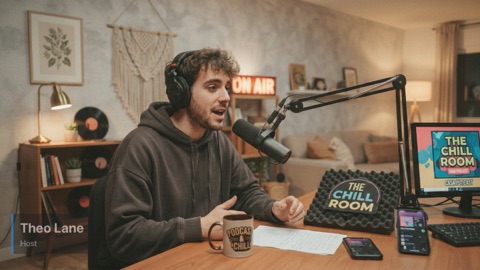
1.1 sEntering
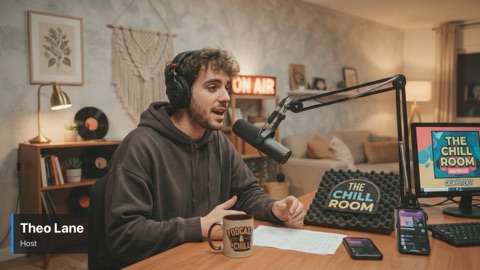
1.3 sUp
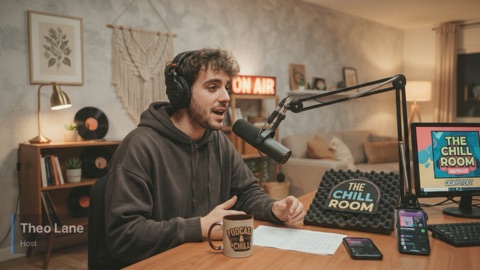
3.6 sLeaving
Ready before you need it, on with one key.
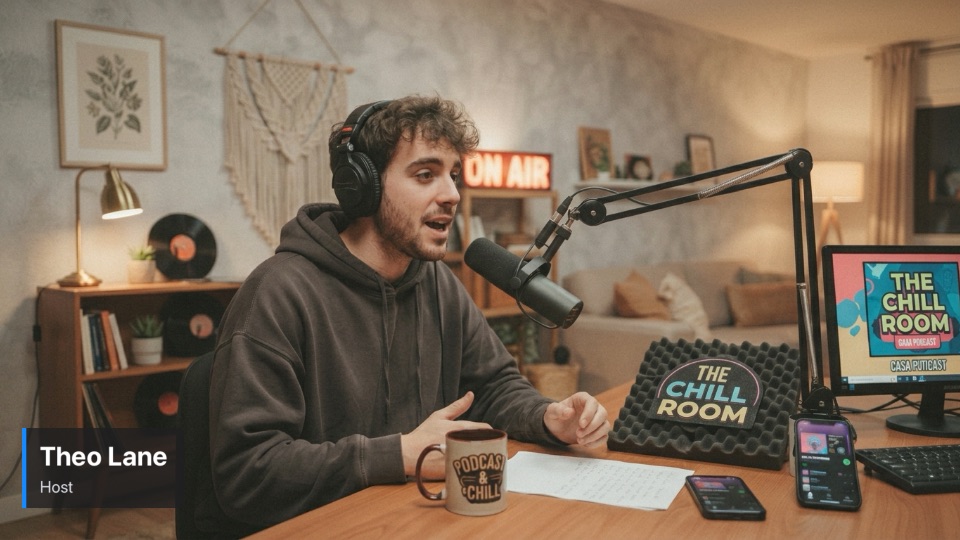
Each person’s lower third waits on the Over bar’s channel 2, above whatever shot is on air. Load the next name while the guest is still talking, then fire it with the channel’s key, Control Option Command W, with your eyes on the guest. The show’s logo sits on channel 3 the whole time. More in Over the program.
Show the name after the person has started speaking, and hold it 6 to 8 seconds. The viewer has just asked “who is this?”. Auto-off at about 7 seconds takes it off for you; bring it back after a break and whenever someone new joins.
Sound like radio
A broadcast strip on every mic, and music that steps aside.
Every mic gets a channel strip: voice isolation to take out the room, a gate, EQ, compression and a limiter, set by the Voice preset to sound controlled and present from the first word. The master holds the show to −16 LUFS, the loudness podcasts are heard at, with a true-peak limiter so it never clips. The music bed plays under the talk and ducks while anyone speaks. More in Sound and Music bed.

Get close, and stay there. A hand’s width from a dynamic mic, talking across it, not into it. Distance changes level and tone more than any setting, so sit where you won’t drift. In an untreated room, a dynamic mic hears mostly you; a condenser hears the whole room.
Stream it and record it
Live on two platforms, and a master for the edit.
One press of STREAM sends the show to YouTube and Twitch together, each with its own encode, so one platform’s trouble stays its own. The recorder starts with it and writes the program plus each mic raw, the music and the master as files of their own, with a chapter at every take. Press MARK, Control Option Command K, when something happens you’ll want to find in the edit. More in Streaming and Recording.
Separate tracks save a show. A bumped desk, a crackling mic, music too loud under one answer: with the tracks, each is a few minutes’ fix in post instead of a lost episode.


Before you go live
The habits that make a talk show sound and look professional, from the manual.
- Match the frame rate to your mains. Set the show to 25 or 50 fps where the mains are 50 Hz, 30 or 60 where they are 60 Hz, so room lights don’t flicker on camera. For a talk show, stream 1080p30 (or 25): faces move slowly, and the bitrate buys a cleaner picture.
- Lock every camera. Once the light is set, turn off automatic exposure, white balance and focus, and give every camera the same white balance by hand, so a cut never changes the colour of the room.
- Close mics, headphones on. A dynamic mic a hand’s width from the mouth, angled across it rather than into it, and closed headphones for everyone, so the guests’ voices and the music don’t come back through the mics.
- Set each trim by talking. A real sentence at show distance and energy: speech should move into the amber on the mic’s meter, and only a laugh reach the red. Then balance with the faders.
- Prepare the names. One lower third per person on channel 2, from the same template, and the first one loaded before you go live.
- Turn on separate tracks. Raw mics, each on its own file, and “Start recording when the stream starts”, so the recording begins with the broadcast.
- Stream over a cable, at half your upload. Measure your upload at the hour you stream; all your platforms together should use at most half of it. Ethernet, not Wi-Fi, and cloud backups paused.
- Rehearse with a private stream. Ten minutes to an unlisted stream at the same time of day, then read the platform’s stream health page before the real one.
- Open from black. Fade to black, press STREAM, give the platforms a few seconds to connect, then fade up on your opening shot. Keep the stand-in ready for a break you didn’t plan.
Questions
Can a guest join from somewhere else?
Yes, two ways. Capture the call’s window with its sound and set it to be heard always, so the guest is heard whichever shot is on air; or have the guest send a phone or an encoder over SRT, which CamStation receives as a camera.
How many cameras and mics?
Up to four show mics, each with its own channel strip, and no limit on cameras, network cameras, screens or clips in a show.
Can I edit the episode afterwards?
Yes. Record with separate tracks and every mic is its own file beside the movie, with the music and the master, plus markers and edit lists that open in Final Cut Pro, DaVinci Resolve and Premiere Pro.
Which of this needs Pro?
Switching, the stand-in, streaming and CamStation Camera and Microphone are free. These are part of CamStation Pro: shots over the program, the mic channel strip, auto-ducking the music and recording the show.
Read on


Your show, on your Mac, the way broadcast does it.
Be the first to know when the beta opens.