 CamStation
Services and events, streamed from one Mac.
Network cameras around the room, the sound desk’s feed, names and words over the picture, and a stream that keeps going on a weak uplink.
Who it’s for
For the volunteer at the back of the hall.
A Sunday service, a conference with three speakers, a wedding for the family who couldn’t travel: rooms where the cameras are far from the desk, the sound comes from someone else’s mixer, and the people running it are often volunteers. CamStation puts the whole production on one Mac, laid out so the next person on the rota can read it.
The pictures on this page are from CamStation’s demo show, The Chill Room, a podcast; the same screens run a service or a conference.
A typical rig
- Cameras
- Two to four network or PTZ cameras around the room on a cabled network, and any camera on a capture card. No limit on cameras in any tier.
- Sound
- The sound desk’s stream mix into an audio interface, as a show mic; a lectern or presenter mic of your own if you need one.
- Words
- Names and the logo on the Over bar; lyrics and readings from your presentation app, as a window capture.
- Outputs
- YouTube and Facebook at once, and a recording of every service.
- Mac
- Apple Silicon (M1 or later), macOS 15.2 or later, on a network cable.
Cameras around the room
Found on the network, checked before they’re added.
Add Network Camera asks every camera on the network to answer, logs in with the camera’s password (kept in the Mac’s Keychain) and shows its live picture before it joins the show. A camera that doesn’t answer the search takes its RTSP address instead. More in Network cameras.
For the wide shot of the stage, nobody talks to the camera, so choose Smooth latency: a little later, and it never stutters.
Mains lights pulse with the power, 100 or 120 times a second. A frame rate that doesn’t divide into that pulse catches each frame at a different point of it, and the hall’s lights roll in dark bands. At 25 or 50 fps under 50 Hz mains, they’re steady.


Never build a segment on a camera you can’t do without. Keep a safe shot in every scene (the wide of the stage) and know its key, so a dropped camera is a cut, not a crisis.
Names and words over the picture
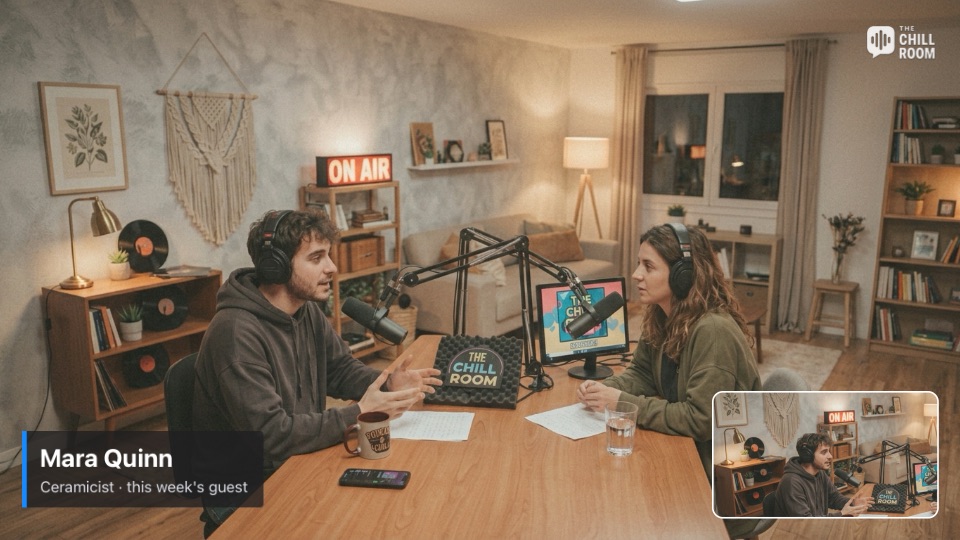
0.6 sWide shot
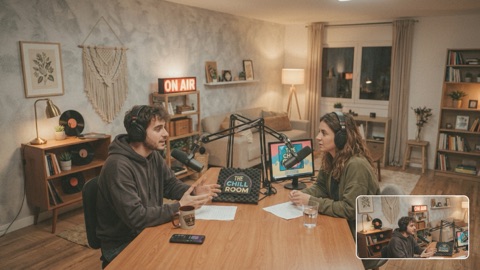
1.1 sChannel 1
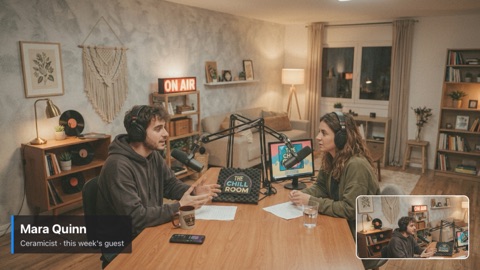
2.1 sChannel 2
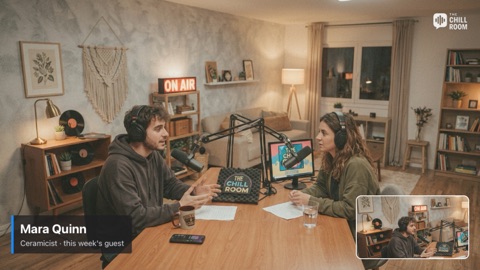
3.2 sChannel 3
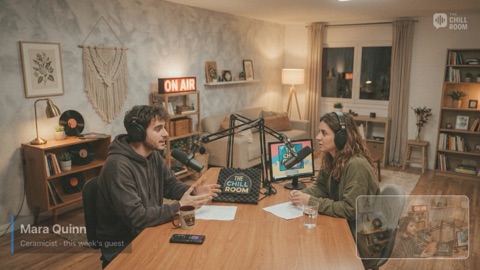
4.9 sAll off
The speaker’s name, the logo, the notices.
The Over bar keeps four channels above whatever camera is on air: a picture-in-picture on 1, the speakers’ names on 2, your logo on 3, a full-frame card for the notices on 4. Each stays up across cuts until you take it off; Control Option Command 0 clears them all. Lyrics and readings come from your presentation app as a window capture, on their own or beside the stage camera in a composite shot. More in Over the program and Screen capture.
Name a speaker a few seconds after they begin, and hold it 6 to 8 seconds. Bring it back when they return after the music, and for every new speaker.
A stream that holds on a weak uplink
One platform’s trouble stays its own.
Each platform gets its own encode and connection. When the building’s upload slows, a platform lowers its own bitrate and catches up; if it still can’t, viewers see a short freeze with the sermon still heard, instead of a stream that ends. More in Streaming.
Use at most half your upload, for all platforms together, measured at service time. The other half is headroom for the bad minutes. And a cable beats the venue’s Wi-Fi every time.

Before the service
The habits that keep an event stream steady, from the manual.
- Pick the frame rate for your mains. Where the mains are 50 Hz (Europe, Australia, most of Asia, Africa and the south of South America), run the show at 25 or 50 fps; at 30 the hall’s LED and fluorescent lights flicker or roll in bands. Where they are 60 Hz, 30 or 60.
- Give every camera a fixed address. A DHCP reservation in the router, so a camera comes back at the same address after a power cut and the show finds it.
- Cable the cameras. A network cable (PoE powers many cameras through it) delivers the picture evenly. A camera that must be on Wi-Fi: strong signal, 5 GHz, latency on Balanced.
- Silence the camera mics. A camera’s own mic across the hall hears the echo and arrives late; mixed with the desk feed, voices sound hollow. Turn its sound off.
- Ask the desk for a stream mix. The room’s mix is made for the room; ask the sound operator for a separate mono mix for the stream, with the speech up and the room mics low.
- Prepare the words. Speakers’ names on channel 2, the logo on 3, the notices card on 4; and the presentation app’s window ready as a screen input for lyrics and readings.
- Keep a safe shot in every scene. A camera you can always cut to (the wide of the stage) in every scene that uses a remote or wireless source, and know which key it is.
- Start before the start. Go live a few minutes early on the stand-in with soft music, so early viewers see a welcome, not the crew.
- Test at service time. A private stream at the same hour on a weekday: the building’s upload in the evening is not its upload in the morning. Use at most half of it.
- Record every service. “Start recording when the stream starts”: if the uplink fails, your copy has everything the platform’s doesn’t.
Questions
Can I use our PTZ cameras?
Yes, as network cameras: CamStation finds them over ONVIF or takes their RTSP address, and shows their picture like any camera. It doesn’t steer them yet; move them from their own controller or app.
What if the internet drops during the service?
Each platform keeps up to 10 seconds of the stream waiting and catches up, lowers its bitrate if it must, and reconnects by itself for as long as you stay live. The recording on your Mac never stops for any of it.
Can a speaker join from another place?
Yes: a phone or an encoder sends to CamStation over SRT, encrypted with a passphrase, and it becomes a camera you can cut to. A call’s window captured with its sound works too.
Which of this needs Pro?
Network cameras, switching, the stand-in and streaming are free. These are part of CamStation Pro: shots over the program, the show overlay, composite shots and recording the show.
Read on


Your show, on your Mac, the way broadcast does it.
Be the first to know when the beta opens.